Screen Conventions & Layout
This topic provides a brief tour of the Printanista Workflow elements and how to navigate the software easily.
Ribbon

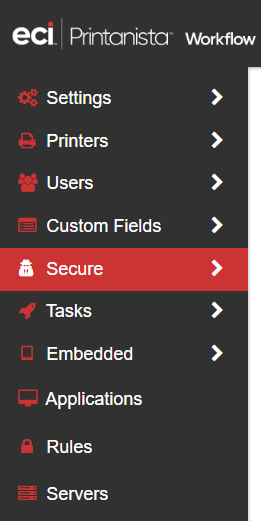
The ribbon provides access to the major functions of the software. Depending on screen resolution, the ribbon may be collapsed and combined with the left menu that appears with option for the selected tab. When you click an option on the ribbon, the tabs update accordingly.
- Dashboard – Provides a graphical overview of jobs tracked, top users, top devices, and the breakdown on job types. You can include up to 6 graphs on the Dashboard screen.
- Administration – Perform configuration, run tasks, manage users and printers, create rules, establish printer groups, etc.
- Job Accounting – Establish account codes, perform an accounting run, build reports and export job information.
- Reporting – Use a standard template base to build customized reports. Run the reports on a defined schedule or as needed.
- My ECi Software Solutions, Inc. – Provides access to the secure queue and allows you to release held jobs, view job events and history and manage data views.
- Logout – Immediately logs you out of the software.
- Help – Launches the main page of the online help, a fully searchable resource to help you answer any questions about the product.
Tabs
The tabs that appear depend on the option you've picked from the ribbon. Some tabs contain a group of options, whereas other tabs open a single screen only.
Field Specific Save
Rather than providing a single Save button per screen, Printanista Workflow provides field, list and option-specific save.
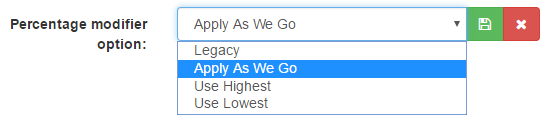
- Fields and Lists: When you click in a list or field, a save and cancel button appears. Choose an option or type in the field, and then click Save to apply the change.
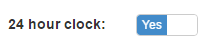
- Options: Options that provide Yes/No functionality are 'sticky' immediately after you change them, and there is no need for a Save or Cancel.
Buttons
Blue buttons open up a new screen or perform a background operation. Red buttons remove/delete the selected item.



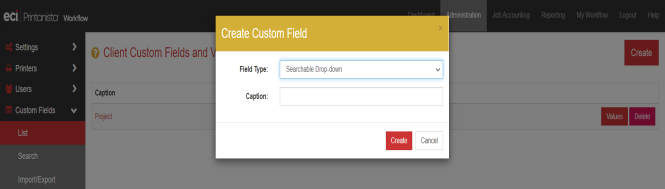
Secondary screens launch over top of the main browser screen and remain until you proceed with an action on the secondary screen (i.e. Create or Cancel in the screen capture below).